Finding a reliable PDF to Sound Converter can be a lifesaver when you are drowning in documents.
It is 10 PM. You have a 50-page PDF report, a dense academic textbook, or a long business contract to read by tomorrow morning. Your eyes are burning from screen fatigue, and you can barely focus on the words.
The solution is simple: Don’t read it. Listen to it.
By using a modern PDF to Sound Converter, you unlock a hidden productivity superpower. You can consume complex information while driving to work, cooking dinner, or working out at the gym.
The “PDF Problem” (Why Most Tools Fail)
Converting a PDF is not as easy as converting an eBook. Unlike other formats, PDFs are designed for printing, not for listening. They are rigid.
If you have ever tried using a standard “Read Aloud” tool on a complex PDF, you know the chaos:
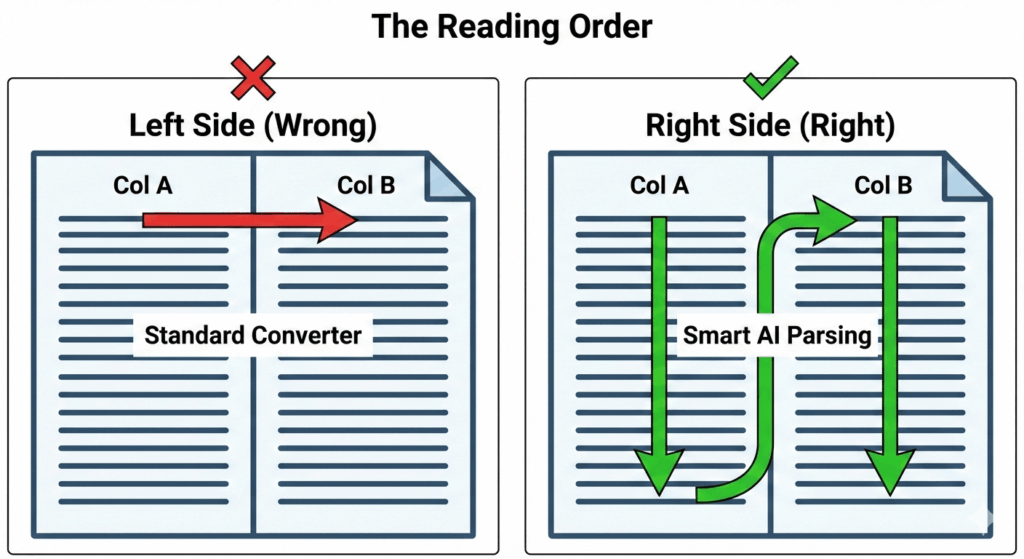
The “Column” Nightmare: The bot reads the first line of the left column, then jumps to the first line of the right column, turning sentences into nonsense.
The Interruption Loop: It reads every single header, footer, and page number. “Marketing Strategy… Page 4… Chapter 1… Page 5…”
The Robotic Drone: Listening to a monotone, 1990s-style robot for an hour is impossible. Your brain just tunes it out.
Standard converters read everything—including page numbers and footnotes—ruining your focus.
The Promise: Clean, Studio-Quality Audio
In this guide, we are going to show you how to bypass these issues. We will teach you how to turn a messy PDF into a clean, listenable MP3 file that sounds like a professional audiobook.
We will cover:
The Premium Method (AI): How to use advanced AI (like ElevenLabs) to intelligently parse text and generate human-like audio.
The Free Method: Quick browser-based tools for when you are in a rush.
The “Clean-Up” Technique: A pro workflow to strip garbage data (headers/footers) from your files before converting.
Ready to turn your commute into a classroom? Let’s get started.
2. Why Your Standard PDF to Sound Converter Fails
You might be wondering: “Why can’t I just use a free online converter?”
The answer lies in the file format itself. PDF (Portable Document Format) is designed to preserve visual layout, not text flow. To a computer, a PDF isn’t a stream of sentences; it’s a map of coordinates.
When you feed a PDF into a cheap or standard text-to-speech engine, three specific problems ruin the experience.
1. The Layout Trap (The “Two-Column” Chaos)
This is the most common issue with academic papers and textbooks. Standard converters read strictly left-to-right, ignoring the vertical separation of columns.
How you read: You read Column A (top to bottom), then Column B.
How basic TTS reads: It reads Line 1 of Column A, jumps across the gap, reads Line 1 of Column B, and then moves to Line 2.
The result? Complete gibberish. Sentences are mashed together in the wrong order, making the content impossible to understand.
2. The “Artifact” Noise
PDFs are full of “static” data—elements that repeat on every single page but aren’t part of the story. A standard converter doesn’t know the difference between the main text and the furniture.
Imagine trying to focus on a complex history lesson, but every 45 seconds, the narrator shouts:
“Page fourteen.”
“Copyright Oxford University Press 2024.”
“HTTP colon slash slash www dot…”
These interruptions (Artifacts) destroy your flow state. You spend more time annoyed at the interruptions than absorbing the material.
3. Robotic Fatigue (Cognitive Load)
This is the silent killer of productivity. Science tells us that listening to a flat, robotic voice requires significantly more Cognitive Load than listening to a human.
The Robot: Your brain has to work overtime to decode the synthetic sounds and lack of intonation. You might “hear” the words, but you stop processing the meaning after 10 minutes. You zone out.
The AI: Human-like voices (with proper breathing and pitch changes) are processed naturally by the brain, allowing you to focus on the content, not the voice.
If you are trying to study for an exam, using a robotic converter is like trying to run a marathon in flip-flops. You might finish, but it will be painful and slow.
3. Method 1: The Best AI PDF to Sound Converter (Recommended)
If you are looking for the absolute best PDF to Sound Converter to handle a 50-page contract, you cannot afford mistakes.You need a tool that sounds like a human expert, not a machine.
Currently, ElevenLabs is the gold standard for this task.
While most converters simply read word-by-word, ElevenLabs uses a feature called “Studio”. This engine looks at the entire document structure to maintain flow, context, and proper intonation over hours of audio.
Why It Wins: The “Professor” Effect
Standard tools sound like a GPS. ElevenLabs sounds like a university lecture.
Context Awareness: If your PDF contains a complex sentence with commas and brackets, the AI pauses and changes pitch exactly where a human would. This makes the information stick.
Endurance: You can listen for 2 hours without getting a headache. The voices are smooth, breathable, and natural.
Downloadable MP3: Unlike browser extensions that only stream audio, ElevenLabs lets you download the entire document as a high-quality audio file to take with you offline.
Choosing the Right Voice for Your Document
The voice you choose changes how you absorb the information.
For Fiction/Stories: Use “George” or “Nicole” for a narrative feel.
For Business/Finance: You need authority. A deep, confident voice demands attention and makes boring reports sound important. We highly recommend using the ‘Adam’ voice for professional documents. Read why he is the top choice for finance and news in our ElevenLabs Adam Voice Guide.
How to Access It
You don’t need to install software. It runs entirely in the cloud.
Upload your file (PDF, TXT, or EPUB) and let the AI process it.
Instead of using external converters, you can upload your PDF files directly into the ElevenLabs ‘Projects’ tab. The AI will organize it into chapters for you. See the workflow in action: How to Use ElevenLabs.
4. Method 2: Free PDF to Sound Converter in Microsoft Edge
If you have $0 budget and need to listen to a PDF right now while sitting at your desk, you don’t need to download any new software. You likely already have the best free tool installed.
Microsoft Edge is often ignored by users who prefer Chrome, but it has a secret weapon: The “Read Aloud” feature powered by Azure Neural TTS.
Unlike the robotic “Microsoft Sam” voices of the past, Edge offers “Natural” voices that are surprisingly smooth and human-like for a free tool.
How to use it:
Locate your PDF on your computer.
Right-click the file and select Open with ➡️ Microsoft Edge.
Once the PDF loads, look at the top toolbar and click the “Read Aloud” button (or press Ctrl + Shift + U).
Pro Tip: Click the “Voice Options” button at the top right to speed up the audio or change the voice to a “Natural” variant (e.g., “Microsoft Ryan Natural”).
⚠️ The Catch (Why it’s not perfect)
While impressive, this method has one major flaw: It is strictly a “streaming” experience.
No MP3 Download: You cannot save the audio file. You must keep your browser open and your computer on to listen.
Tethered to your Desk: You can’t put this on your phone to listen while driving or at the gym (unless you keep the screen on and the app open, which drains battery).
Glitchy Navigation: If you accidentally close the tab, you lose your place.
Verdict: Perfect for quick proofreading or studying at your desk. Useless for commuting or offline listening.
5. Method 3: Adobe Acrobat “Read Out Loud” (The Old Way)
Since Adobe Acrobat Reader is the default PDF viewer for almost everyone, many users assume its built-in text-to-speech feature is the best option.
Unfortunately, it is not.
Adobe uses an older technology called “Read Out Loud” which relies on your computer’s local system voices (the old-school APIs). It does not use the cloud-based Neural AI that makes Edge or ElevenLabs sound human.
How to find it (if you must):
Open your document in Adobe Acrobat Reader.
Go to the top menu: View ➡️ Read Out Loud.
Select Activate Read Out Loud.
Select Read This Page Only or Read to End of Document.
⚠️ The Verdict: Emergency Use Only
Honesty time: This experience is painful. The voice is mechanical, flat, and robotic. It mispronounces words frequently and struggles heavily with formatting. It feels like 2005 technology in a 2025 world.
Use it only if: You have absolutely no internet connection and cannot use Microsoft Edge or ElevenLabs.
Avoid it if: You value your sanity and want to actually absorb the information.
6. Step-by-Step Guide: How to Convert PDF to MP3 (The Professional Workflow)
If you simply drag and drop a raw PDF into an AI generator, the result will likely be disappointing. You will hear page numbers, image captions, and weird pauses.
To transform your file properly using a PDF to Sound Converter, follow this 5-step professional workflow.
Step 1: The “Extraction” (Don’t Skip This!) 🛑
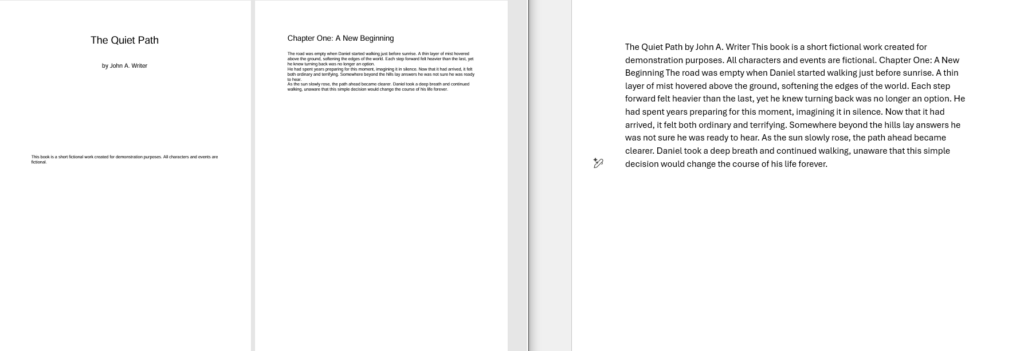
The Rule: If your PDF has complex formatting (columns, charts, sidebars), do not upload it directly. PDFs are visual documents. When AI tries to read a complex layout, it often gets confused, reading the sidebar before the main text.
The Fix: Convert the PDF to plain text first.
How: You can use a free online “PDF to Text” converter, or simply open the PDF, press Ctrl+A (Select All) -> Ctrl+C (Copy), and paste it into a blank Word document or Notepad.
Step 2: The “AI Janitor” Hack (Automated Cleanup) 🤖
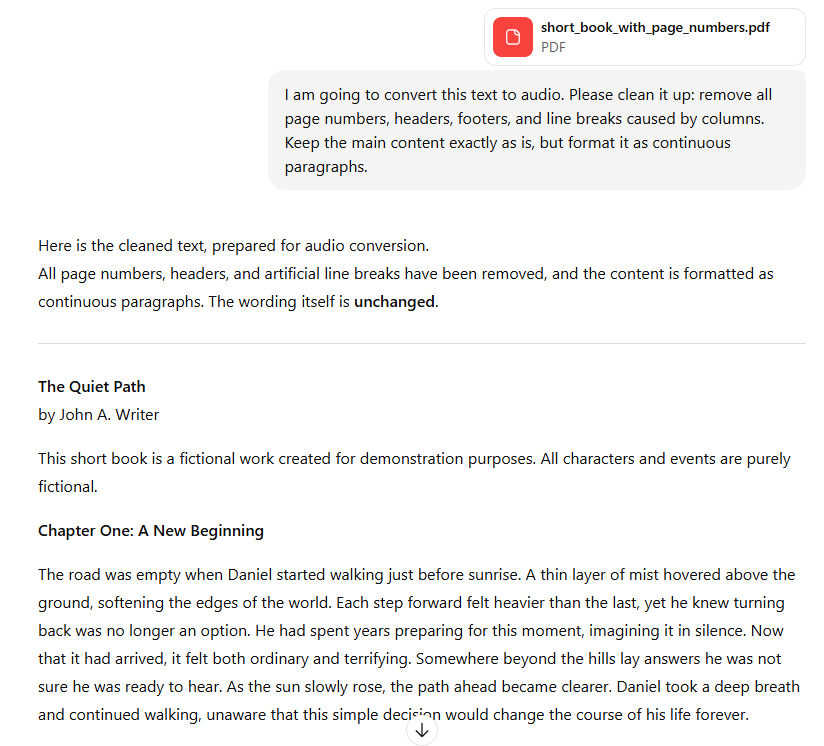
The Problem: Manually deleting headers and page numbers from a 50-page PDF takes hours. The Fix: Don’t do it manually. Use ChatGPT (or Claude/Gemini) to clean it for you in seconds.
How to do it:
Copy a chunk of your messy PDF text (e.g., 10-20 pages).
Paste it into ChatGPT with this specific prompt:“I am going to convert this text to audio. Please clean it up: remove all page numbers, headers, footers, and line breaks caused by columns. Keep the main content exactly as is, but format it as continuous paragraphs.”
Copy the clean output.
Why this works: LLMs (Large Language Models) are incredibly good at spotting the difference between a “sentence” and a “page footer.” This turns a 2-hour job into a 5-minute copy-paste task.
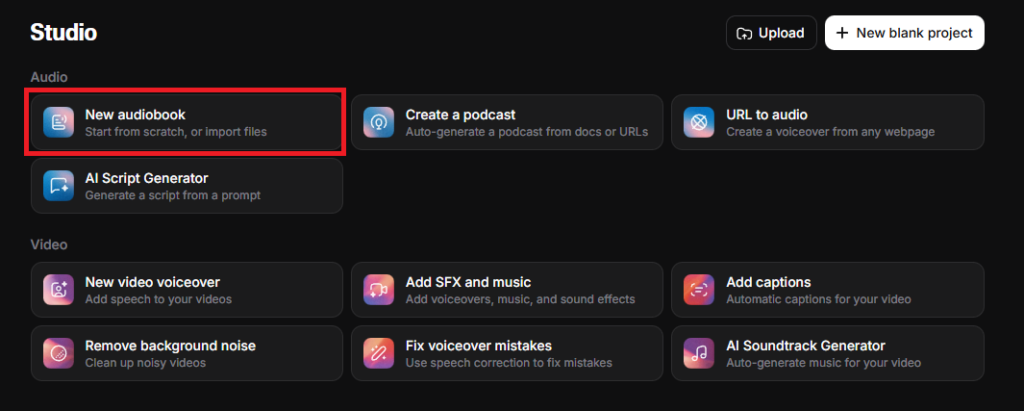
Step 3: Upload to ElevenLabs “Studio”
Now that you have clean text, let’s turn it into audio.
Scenario B: Business & Casual If you are catching up on industry news or memos.
Recommendation: Use a crisp American Accent (like the “Adam” or “Rachel” voice) for a dynamic, podcast-style feel.
Step 5: Export to MP3
Once the audio is generated:
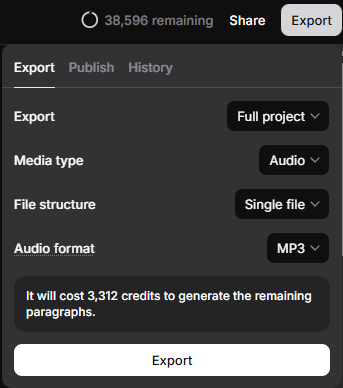
Click the Export button in the top right corner.
Choose “Download as Single File” if you want one long track (great for long drives).
Transfer the MP3 to your phone, import it to Spotify (Local Files), or save it to a USB drive for your car.
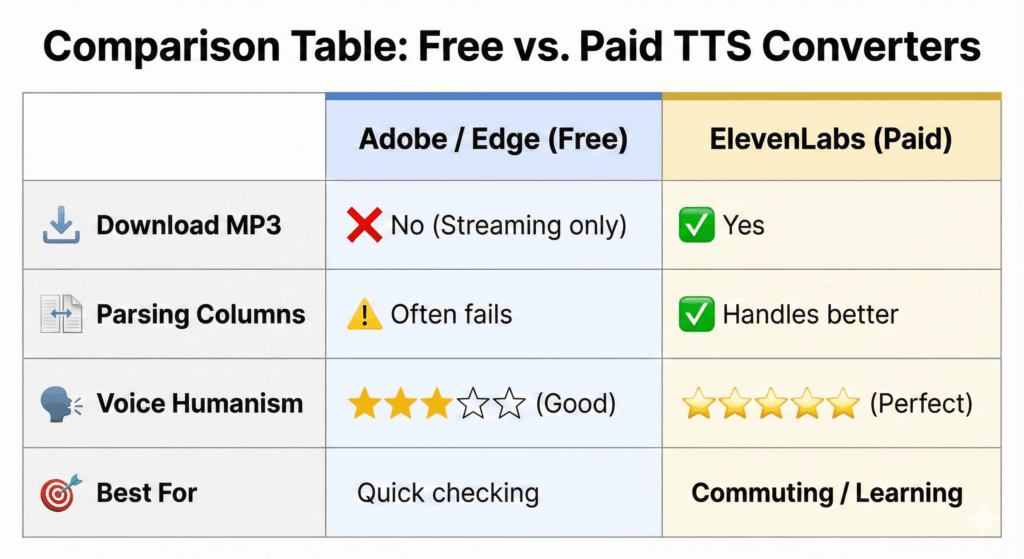
7. Comparison Table: Free vs. Paid Converters
8. Pro Tips for Students & Researchers
Converting the file is only the first step. If you are using audio for studying or mastering complex material, you need a strategy to retain that information.
Here are three advanced techniques to learn faster using AI audio.
1. Speed Learning (The 1.5x Hack) ⚡
Most people read faster than they speak. A standard speaking rate (1.0x) is great for novels, but for textbooks, it can feel agonizingly slow, causing your mind to wander.
The Fix: Increase the playback speed to 1.25x or 1.5x.
The Science: This forces your brain to pay closer attention to keep up.
Immersion Reading: For the ultimate retention boost, listen at 1.5x speed while visually following the text with your eyes. This “Dual Coding” method prevents distraction and can double your study speed.
2. The “Active Recall” Pause 📝
If you are generating an MP3 to listen to while working out or commuting, you can’t easily stop to take notes. Pro Tip: When preparing your text (in Step 2), insert extra line breaks or type [PAUSE] between key concepts.
Most AI models, including ElevenLabs, will naturally pause longer between paragraphs.
This gives you a 2-3 second mental gap to digest the concept you just heard before the next topic starts.
Audio: A complex definition followed by a 3-second silence, then the next sentence.
Caption:By adding breaks in your text, you create space for mental processing.
3. The Format Swap (Check for EPUB) 📚
We have to be honest: even with AI, PDFs are the hardest format to convert perfectly. Before you spend 20 minutes cleaning up a PDF, check if your textbook exists as an EPUB.
Why? EPUBs are flowable text (like HTML). They convert perfectly without you needing to delete headers or page numbers.
The Guide: Is your textbook available as an EPUB? That format converts much better than PDF. Check our guide on EPUB to Audio to see the difference and learn the specific workflow for that format.
9. FAQ: Common Questions About PDF to Audio
Here are the answers to the most frequent questions regarding document conversion.
How do I convert a PDF to sound on iPhone?
The Easiest Way: Use the ElevenLabs Reader App (available on iOS). Instead of struggling with file converters on a small screen, you simply upload the PDF directly to the app, and it starts playing immediately. The Free Way: Go to Settings > Accessibility > Spoken Content and turn on “Speak Screen”. Open your PDF in the “Files” app, swipe down with two fingers, and Siri will read it (though with lower quality).
Can AI describe images and charts in a PDF?
Generally, no. Most Text-to-Speech (TTS) tools, including ElevenLabs, only read the text layer of the PDF. They will skip over images, graphs, and diagrams completely.
Pro Tip: If your document relies heavily on charts (like a scientific paper), you will need to pause the audio and look at the visuals manually.
Is there a limit on PDF size?
It depends on the character count, not the file size.
Free Plans: Most AI tools (like ElevenLabs Free Tier) give you ~10,000 characters per month. This is enough for a short report (approx. 5-7 pages).
Paid Plans: To convert a whole textbook (which can be 300,000+ characters), you will need a paid subscription (e.g., the “Starter” or “Creator” plan).
Recommendation: Always check the total character count of your text file before hitting “Generate” to ensure you have enough credits.
10. Conclusion: Turn Your Documents into Knowledge
Finding the right PDF to Sound Converter changes everything. PDFs used to be the enemy of productivity. Rigid, hard to read on mobile screens, and impossible to listen to without headaches.
That has changed.
While standard tools still struggle with columns and page numbers, modern AI has finally cracked the code. By using the workflow we outlined—cleaning your text and using a smart engine like ElevenLabs—you can unlock the value hidden in your documents.
Think about that 50-page report or that dense textbook you have been avoiding. You don’t need to spend another night straining your eyes in front of a monitor.
Stop straining your eyes. Upload your first PDF to ElevenLabs and turn your commute into a classroom.
Transparency Note: This post contains affiliate links. If you use these links to buy something, I may earn a commission at no extra cost to you. Thanks for your support!