📝 Editor’s Note (2026 Update): The AI voice market is changing rapidly. If you are looking for the absolute best tools available right now, we have just wrapped up our extensive testing of the top platforms. Check out our definitive ranking: 7 Best AI Voice Generators in 2026 (Tested & Ranked).
Table of Contents
1. Introduction: The New Standard of Audio
In the past, high-quality voiceover was the single biggest bottleneck in content creation. To get professional results, you needed a soundproof studio, expensive hardware, and a budget of $500+ per hour for a talented voice actor.
If you are wondering how to use ElevenLabs to its full potential, you have come to the right place. This isn’t just another text-to-speech tool that robotically reads words. It is a Generative AI Audio model.
What Makes ElevenLabs Different?
Unlike old-school synthesizers that splice together pre-recorded sounds, ElevenLabs uses deep neural networks to “understand” the text.
It recognizes context (e.g., it knows the difference between “tear in my eye” and “tear in the paper”).
It applies human emotion (whispering, shouting, pausing for dramatic effect).
It breathes, laughs, and fluctuates pitch just like a real person.
The difference between traditional TTS and Generative AI is indistinguishable from reality.
Who is This Guide For?
We have written this masterclass for creators who demand studio quality:
YouTubers: Specifically those running “Faceless Channels” who need engaging narration.
Authors & Publishers: Who want to turn their e-books into Audiobooks without hiring a narrator.
Game Developers: Who need dynamic voices for NPCs.
Marketers: Who need to dub video ads into multiple languages instantly.
What You Will Learn
ElevenLabs has evolved into a massive audio suite. In this guide, we will walk you through every single feature—from the free basics to the advanced “Pro” tools.
We will cover:
Speech Synthesis: How to generate the perfect take.
Voice Lab: How to clone your own voice (or create a new one).
AI Dubbing: How to translate videos automatically.
Projects: How to manage long-form content like books.
Ready to find your voice? Let’s dive into the dashboard.
When you first log in to ElevenLabs, the interface is clean, but it can be deceptive. Behind these few buttons lies a powerful studio. Let’s break down the layout so you know exactly where to go.
The Feature Menu: What Can You Create?
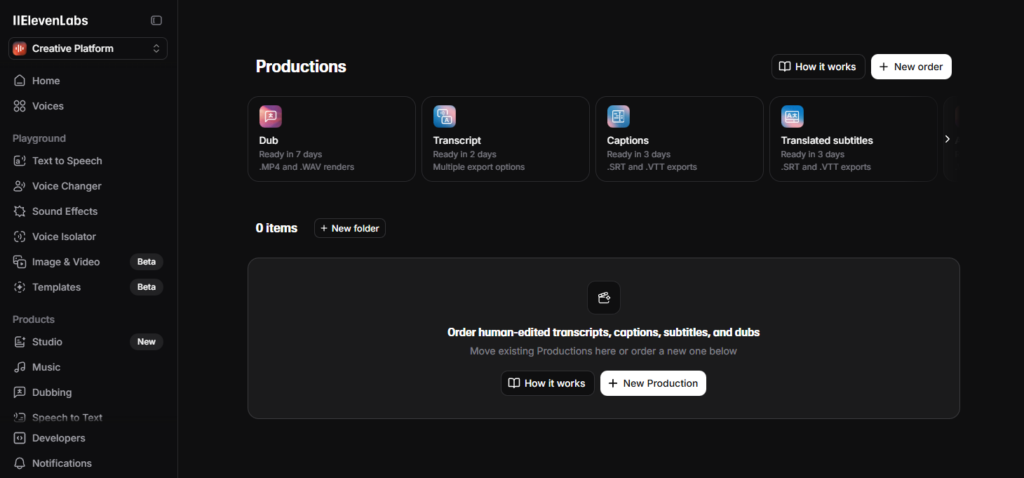
The left-hand sidebar is packed with tools. Here is a breakdown of every feature available in the 2025 dashboard:
Voices: The library where you can browse, audition, and select the perfect voice for your project from thousands of community and official options.
Text to Speech: The most popular tool on the platform. Simply input your text, select an ElevenLabs model, and watch as your chosen voice brings it to life. Depending on the model, you can fine-tune the speaking style, emotion, and delivery.
Voice Changer (Speech to Speech): This feature allows you to transform your own voice recording into the voice of one of the ElevenLabs narrators, while preserving your original emotion and intonation.
Sound Effects: A complete SFX studio. You can access a library of ready-made sounds or use AI to generate custom sound effects from scratch based on your text prompts.
Voice Isolator: A life-saver for podcasters. This tool analyzes your audio file and removes background noise, significantly improving clarity and production value.
Image & Video: A visual creation suite where you can generate images and videos using cutting-edge AI models, including integrations with Sora and Veo 3.
Studio (Projects): Your command center for long-form content. Whether you are producing an entire audiobook, a podcast episode, or a professional voiceover, this workspace helps you manage complex projects.
Music: Create full songs using AI. You can upload your own lyrics or simply describe the vibe and style, and the AI will compose the audio and lyrics for you.
Dubbing: Ready to go global? This feature automatically translates and dubs your videos into 29 different languages, preserving the original speaker’s voice and timing.
Speech to Text: Perfect for content repurposing. This tool transcribes your audio and video files into accurate text, ideal for podcast show notes or subtitles.
Productions: If you prefer a human touch over AI, this service connects you with a team of specialists to handle manual dubbing, transcription, captions, and subtitle translation.
The Speech tab is for quick generation, while VoiceLab is where you build your cast of characters
Understanding Your Quota (The Economy of ElevenLabs) 📉
Before you start clicking “Generate,” you must understand how the credit system works. ElevenLabs charges you based on Characters (letters, numbers, punctuation, and spaces), not words or minutes.
How it is calculated: The cost varies between 0.5 to 1 Credit per character, depending on your subscription plan and the specific AI model you select.
Standard Models (Multilingual v1/v2): Typically cost 1 Credit per character.
Turbo Models: Optimized for speed and cost-efficiency, often costing only 0.5 Credits per character.
Example: The sentence “Hello World!” (12 characters) could cost you 12 credits (High Quality) or just 6 credits (Turbo).
Why this matters: Every time you click “Generate,” credits are deducted from your monthly allowance.
Pro Tip: Always test your voice settings on a short sentence (e.g., “This is a test.”) before pasting your entire script. This saves thousands of credits in the long run.
The Trap: If you generate a long paragraph, realize you don’t like the tone, and click “Generate” again, you pay for that text twice.
3. Core Feature 1: Text to Speech (TTS) 🗣️
This is the heart of the platform. You will likely spend 80% of your time in this tab.
While the interface looks simple—a text box and a “Generate” button—the magic lies in the subtle settings. Here is how to master them.
A. Choosing the Right Voice & Model
Before you type a single word, you need to select your “actor.”
1. The “Premade” Legends ElevenLabs comes with high-quality default voices. You have likely heard them on TikTok or YouTube already.
Adam: The “Viral Narrator.” Deep, authoritative, and calm. Perfect for history channels, motivational videos, and news.
Rachel: Soft and narrative. The industry standard for audiobooks and storytelling.
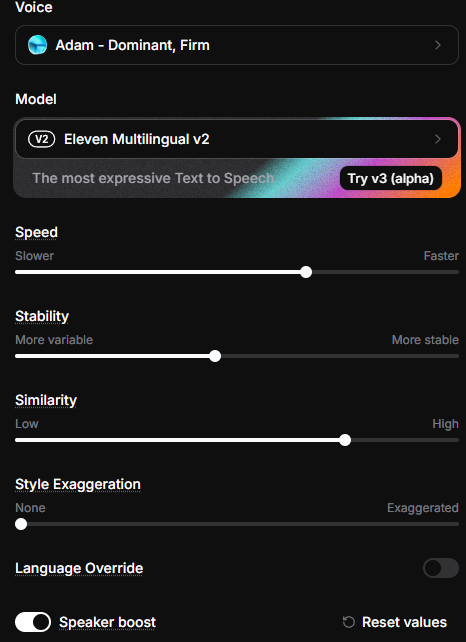
2. Selecting the Model: Turbo vs. Multilingual Below the voice selector, you will see a dropdown for “Model.” This choice affects both quality and cost.
Eleven Multilingual v2: The powerhouse. It captures the deepest emotional nuances and supports 29 languages. Cost: ~1 credit per character. Use this for final production.
Eleven Turbo v2/v2.5: Optimized for speed. It generates audio ~4x faster and is much cheaper. Cost: ~0.5 credits per character. Use this for long texts or testing ideas.
Turbo is great for speed, but Multilingual v2 wins on emotion.
B. Mastering Voice Settings (The “Secret Sauce”) 🎛️
This is where beginners fail and pros excel. Clicking “Voice Settings” reveals three crucial sliders.
1. Stability (The Emotion Slider) This controls how consistent the voice sounds.
Low (0-30%): The AI takes risks. It might whisper, shout, or crack its voice. Perfect for: Dramatic acting, gaming NPCs, emotional dialogue.
High (70-100%): The voice becomes consistent and predictable. Perfect for: News reading, educational videos, corporate training.
Warning: If set to 0%, the AI might start laughing or making weird noises. If set to 100%, it will sound robotic.
2. Clarity + Similarity Enhancement This controls how closely the AI tries to replicate the original voice sample.
Low: The voice is clearer and smoother, but might sound slightly generic.
High: The voice sounds exactly like the original clone (including the mic quality).
Warning: Setting this too high can introduce “artifacts” (electronic clicking sounds or background static).
3. Style Exaggeration This tells the AI how much to “overact.”
0%: Neutral delivery.
High: The AI emphasizes words heavily. Useful if the voice sounds too bored, but can make it sound unstable if pushed too far.
The “Golden Setting” for most narrations is Stability: 50% and Similarity: 75%.
C. Generating & History
Once you click Generate, the audio appears at the bottom of the screen.
Crucial Note on History: Every single clip you generate is automatically saved in the History tab.
Don’t delete too fast: If you generated a perfect take but forgot to download it, you can always find it in History.
Download: Always download your files as MP3 or WAV immediately if you are happy with them, to keep your workflow organized.
If Text to Speech is the engine, VoiceLab is the factory where you build the car.
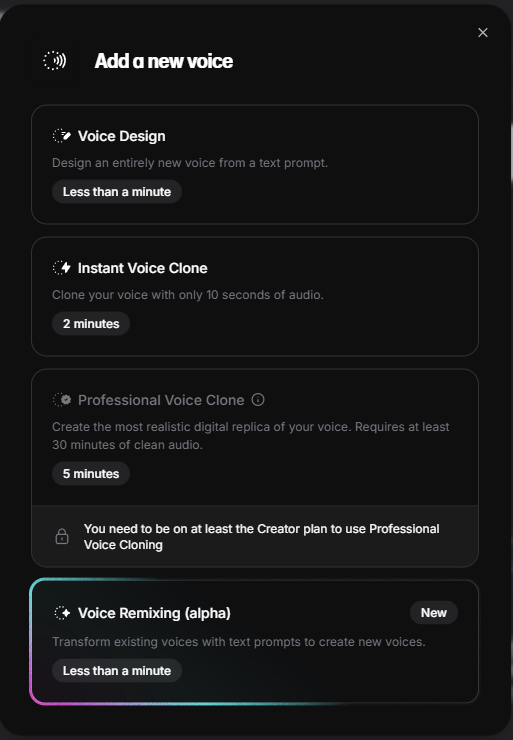
This is the feature that put ElevenLabs on the map. It allows you to generate completely new voices or clone existing ones with frightening accuracy. Here is how to navigate the three main tools within VoiceLab.
A. Voice Design: Conjure a Voice from Text ✨
What if you need a specific character for an RPG game or a novel, but you don’t have a voice actor to clone? You use Voice Design.
Forget clicking through endless dropdown menus. In the latest version, you simply describe the voice you want, just like generating an image in Midjourney.
How to use it:
Go to Voices ➡️ + Create a New Voice ➡️ Voice Design.
The Prompt: Type a detailed description of the persona.
Example: “A grumpy old pirate with a raspy British accent, smoking a pipe.”
Example: “A soft-spoken, futuristic female AI assistant with a calm tone.”
The Text: Input the sample text you want this new voice to read.
Click “Generate”.
The Magic: The AI interprets your prompt and creates 3 unique voice options. You can preview them, and if you like one, click “Use Voice” to save it to your library.
Best For: Creating unique fictional characters that don’t exist in the real world.
B. Instant Voice Cloning (IVC): The Speed Demon ⚡
Available on Starter Plan & up.
This is the feature used for most memes and viral videos. It creates a digital copy of a real person’s voice from a very short sample.
How to do it:
Click + Add New Voice ➡️ Instant Voice Cloning.
Upload a clear audio file (MP3/WAV) of the person speaking.
Requirement: Minimum 1 minute of audio.
Give it a name and click Add Voice.
Result: The voice is ready to use immediately.
Pro Tip (EEAT): Quality Matters The AI follows the “Garbage In, Garbage Out” rule. If your sample has background music, echo, or static, the clone will also have those artifacts. Always use isolated, dry vocals for the best results.
Don’t search for a voice—describe it. The AI will build it for you.
If Instant Cloning is a sketch, Professional Voice Cloning is a 4K photograph. This is the premium feature that justifies the subscription cost.
The Difference: Unlike IVC, which “guesses” how the voice sounds based on a short clip, PVC trains a dedicated deep-learning model specifically on your data.
Requirements: You need to upload at least 30 minutes to 3 hours of high-quality audio.
Training Time: It is not instant. It takes about 3-6 hours to compute.
The Result: An indistinguishable digital twin that captures the speaker’s breathing habits, micro-pauses, and full emotional range.
Why upgrade? If you are narrating an audiobook or running a serious YouTube channel with your own voice, IVC will sound “good enough,” but PVC will sound human.
5. Core Feature 3: Speech to Speech (Voice Changer) 🎭
Text to Speech is amazing, but it has one flaw: it is hard to describe exactly how a sentence should be said using just text.
How do you type a “nervous stutter” or a “terrified whisper”? You don’t. You act it out.
This is where Speech to Speech (STS) changes the game. It is the bridge between AI and human acting.
How It Works (The “Voice Skin” Concept)
Instead of typing text, you speak into your microphone. The AI listens to your performance (intonation, speed, emotion, whispers, screams) and applies it to a different voice model.
Input: You, shouting “Run for your lives!” with panic in your voice.
Output: The “Adam” or “Geralt” voice shouting “Run for your lives!” with your exact level of panic.
It acts like a digital costume for your vocal cords.
Step-by-Step Instructions
Go to the Voice Changer tab.
Input Audio:
Option A: Click the microphone icon and record directly in the browser.
Option B: Upload a pre-recorded audio file (WAV/MP3).
Select a Voice: Choose the target voice you want to sound like (e.g., a deep movie trailer voice).
Click Generate.
Best Use Cases for STS
When should you use this instead of Text to Speech?
Gaming & NPCs: If you are a game developer indie, you can voice all the characters yourself. Growl like an orc, squeak like a goblin, and let ElevenLabs transform the timbre. The acting remains yours; the sound becomes theirs. Perfect for Twitch streamers or game developers,
Cross-Gender Dubbing: A male creator can voice a female character (and vice versa) without it sounding like a cheap pitch-shift effect.
Extreme Emotions: TTS models sometimes struggle to scream or cry convincingly. With STS, you can scream into your mic, and the AI will replicate that intensity perfectly.
Pro Tip: The “Style” Slider
In STS mode, the “Voice Settings” still apply.
If the output sounds too much like you and not enough like the target voice, increase the Similarity slider.
If the AI is losing the emotion of your performance, lower the Stability.
6. Core Feature 4: Studio (Long-Form Audiobooks) 📚
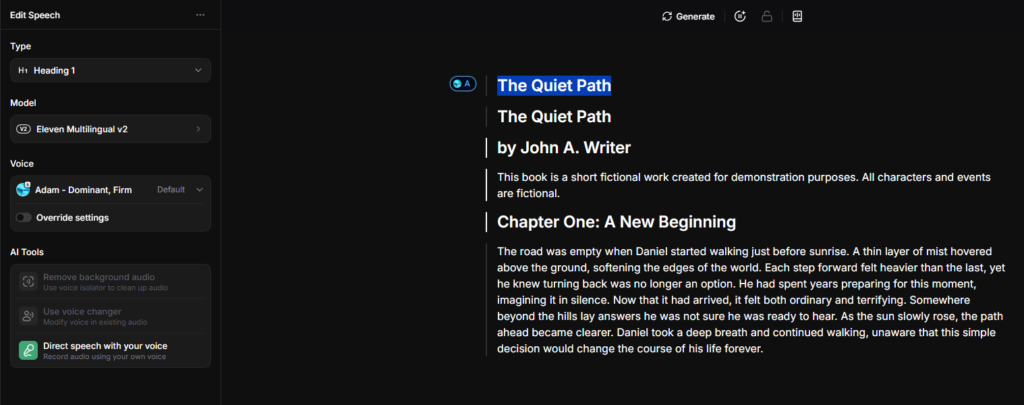
If you are just making a 30-second TikTok, the standard “Speech” tab is fine. But if you are creating an Audiobook, a Podcast, or a Video Essay longer than 10 minutes, using the standard window is a mistake. You will get lost in hundreds of small files.
This is why the Studio tab exists. It is a dedicated workstation for long-form content creators and publishers.
Why “Studio” Changes Everything
The “Studio” dashboard is designed to handle entire manuscripts (EPUB, PDF, or TXT). It treats your text like a book, not a loose collection of sentences.
The Workflow:
Import: You upload your entire book at once.
Structure: The AI divides it into Chapters automatically (or you can do it manually).
Context: The AI “reads ahead.” It understands that a sentence in Chapter 2 relates to the tone of the previous paragraph, creating a much more cohesive narration than generating sentence-by-sentence.
In the Standard Tab: If you generate a 500-character paragraph and the very last word sounds weird, you have to regenerate (and pay for) the entire paragraph again.
In Studio: You can click on just that one specific sentence and hit “Regenerate.” You only pay for those few characters.
Result: precise control and massive credit savings over the course of a 10-hour book.
Key Advantage 2: Multi-Speaker Dialogues 🗣️
Writing a novel with dialogue? Projects allows you to assign specific voices to specific paragraphs easily.
How to do it:
Highlight the narrator’s text ➡️ Assign to “Rachel.”
Highlight the male character’s dialogue ➡️ Assign to “Adam.”
Highlight the villain’s dialogue ➡️ Assign to “Clyde.”
The Magic: When you click “Convert,” ElevenLabs stitches everything together into one seamless audio file with correct pausing and pacing between speakers.
Key Advantage 3: Pause Control
In Projects, you have visual control over pacing. You can manually adjust the length of the pause between sentences by adjusting the gap in the visual timeline, ensuring the rhythm matches the dramatic tension of your story.
7. Core Feature 5: AI Dubbing Studio 🌍
For years, the “MrBeast Strategy” (running separate channels for Spanish, Portuguese, etc.) was only possible for millionaires who could afford teams of dubbing actors.
ElevenLabs AI Dubbing democratizes this. It allows you to take a video recorded in English and instantly convert it into 29 other languages—while keeping your voice.
The Magic: Cross-Lingual Voice Cloning
This is not just a translation tool. If you use a standard translator, you lose the emotion. ElevenLabs does four things simultaneously:
Transcribes your speech.
Translates the text.
Clones your voice (preserving your tone).
Syncs the new audio to the original video timeline.
The Result: You speak fluent Japanese, German, or Hindi, sounding exactly like yourself.
Step-by-Step: How to Dub a Video
Go to the Dubbing tab.
Create New Dub:
Source: Upload a video/audio file OR paste a YouTube/TikTok link directly.
Source Language: “Detect Automatically” works best.
Target Languages: Select as many as you want (e.g., Spanish, French, Polish).
Advanced Settings: Ensure “Number of Speakers” is set correctly if there is more than one person talking. The AI can distinguish between different voices and dub them all separately.
Click Create.
Here is a comparison of an English video dubbed into Spanish.
The Dubbing Studio: Fixing the AI (Editing) 🛠️
Automated dubbing is 95% accurate, but for professional content, you need 100%. This is where the Studio Editor comes in.
Once the generation is finished, click on the project to open the timeline editor. Here you can:
Correct Translations: Did the AI translate a slang term literally? You can edit the text script, and the AI will regenerate just that phrase in seconds.
Adjust Timing: If the Spanish sentence is longer than the English original, you can drag the audio clip to align it perfectly with the on-screen action or lip movement.
Regenerate Performance: If the dubbed voice sounds too flat in a specific sentence, hit regenerate to get a different emotional delivery.
8. Core Feature 6: Sound Effects (SFX) 🔊
For years, video editors have struggled with “Stock Audio Hell”—spending hours searching libraries like Epidemic Sound or Artlist just to find the specific sound of “a rusty door opening in a cave.”
ElevenLabs Sound Effects solves this by generating audio from scratch based on a text description. It is essentially “Midjourney for Sound.”
How It Works: Text-to-Audio
This tool uses a diffusion model to understand the physics of sound. You don’t search a database; you prompt the AI to create a new waveform.
The Input: “Walking on dry leaves, heavy breathing, distant wolf howl.”
The Output: A unique, royalty-free sound clip that matches your description perfectly.
Step-by-Step Guide
Navigate to the Sound Effects tab in the sidebar.
The Prompt: Be descriptive.
Bad Prompt: “Car.”
Good Prompt: “1960s muscle car engine revving, then peeling away on asphalt.”
Duration: You can set the length of the clip (usually short bursts for foley work).
Click Generate.
The AI will give you 4 variations. Pick the best one and download it.
Best Use Cases for Creators
Foley Art: Adding footsteps, cloth rustling, or door creaks to your animations or films.
Impossible Sounds: Generating sci-fi sounds that don’t exist in real life (e.g., “Laser sword hitting a marshmallows shield”).
Stop searching for stock sounds. Just type what you hear in your head.
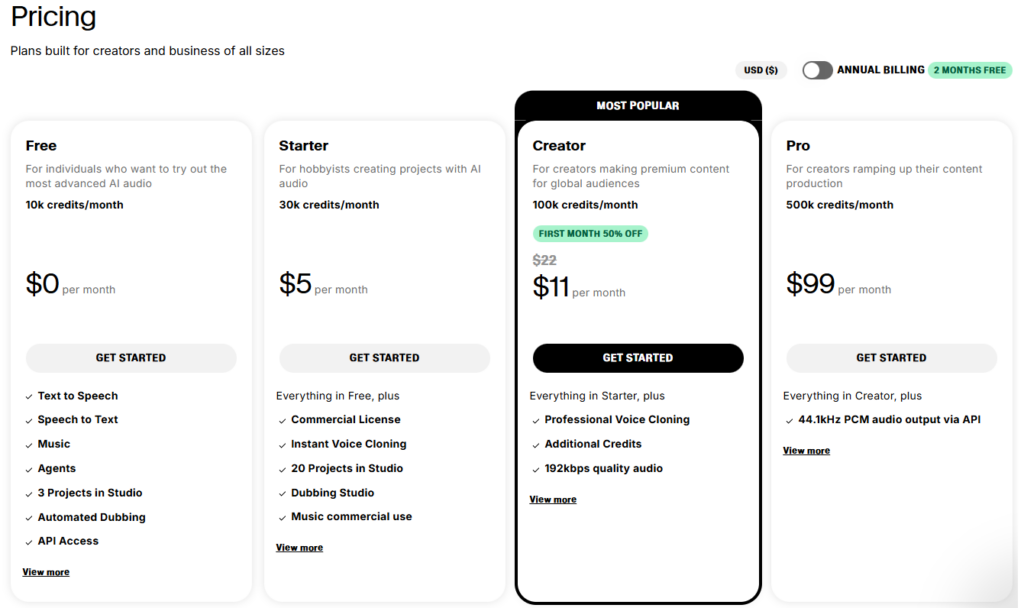
9. Pricing Guide: Which Plan is Right for You?
One of the most common questions is: “Can I use the free version for YouTube?” The short answer is: No, not if you are monetizing.
Here is a breakdown of the plans based on real-world use cases, so you don’t overpay (or get banned).
1. Free Plan: The “Try Before You Buy”
Best for: Testing the technology, sending funny audio to friends, personal non-profit projects.
The Limit: 10,000 characters per month (~10 minutes of audio).
The Catch:No Commercial License. You cannot use this voice for YouTube AdSense, paid audiobooks, or sponsored content. You must also attribute ElevenLabs in your description.
Voice Lab: No cloning allowed. You can only use the default premade voices.
2. Starter Plan: The Entry Level ($5/mo)
Best for: New YouTubers, TikTokers, and hobbyists.
The Upgrade: You get 30,000 characters (~30 minutes) and full Commercial Rights. You can monetize your content safely.
Key Feature:Instant Voice Cloning is unlocked. You can clone your own voice instantly for short videos.
3. Creator Plan: The “Sweet Spot” ($22/mo) 🏆
Best for: Serious YouTubers, Podcasters, and Authors.
Why it is the Best Value: This is where the real power of ElevenLabs unlocks.
Professional Voice Cloning (PVC): This is the only plan that lets you train the AI on 30+ minutes of audio to create a perfect, indistinguishable digital twin.
Higher Quality: You get access to higher audio quality outputs (192kbps).
Volume: 100,000 characters (~2 hours of audio) is usually enough for 4-5 long-form YouTube videos per month.
Best for: Agencies, Publishing Houses, and heavy users.
The Upgrade: Massive character limits (500k+) and Priority Rendering (your audio generates faster than everyone else’s during peak hours).
For most creators, the Creator Plan offers the best balance of features and cost.
Summary Recommendation
If you just want to make memes: Go Starter.
If you want to narrate books or professional videos: Go Creator (for Professional Cloning).
If you are just curious: Stick to Free.
10. Pro Tips & Best Practices: Mastering the AI 🧠
Using ElevenLabs is easy; mastering it requires a bit of finesse. The AI is smart, but it still needs a director. Here are the advanced techniques used by power users to get perfect takes while saving money.
1. Controlling the Pace: The Art of the Pause ⏸️
Sometimes the AI speaks too fast, or it rushes through a dramatic moment. You can force it to slow down using two methods:
Method A: The Natural Way (Punctuation) The model is trained on real literature, so it respects grammar.
Comma (,): A very short micro-pause.
Period (.): A standard sentence finish.
Ellipsis (...): A trailing off or hesitation.
The Dash (- or --): This is the secret weapon. Adding a dash creates a distinct beat.
Example: “Wait… — did you hear that?”
Method B: The Surgical Way (SSML Tags) If you need a precise silence (e.g., for a video transition), you can use a specific code tag.
The Code:<break time="1.5s" />
How to use: Paste this tag exactly where you want silence. You can change the “1.5s” to any duration.
Example: “And the winner is… <break time="2.0s" /> John Doe!”
Pacing Test
And the winner is John Doe.And the winner is… …John Doe!
2. Prompt Engineering for Audio: Forcing Emotion 😡
The AI understands context, but sometimes you need to force a specific reaction. You can use text formatting as “stage directions.”
SHOUTING: Writing in ALL CAPS often triggers a louder, more intense delivery.
Input: “Get out of here!” vs. “GET OUT OF HERE!”
Whispering: While there isn’t a “whisper button,” framing your sentence with context helps.
Input: “She leaned in close and whispered, ‘It’s hidden under the floorboards.'” (The AI will often whisper the quote automatically).
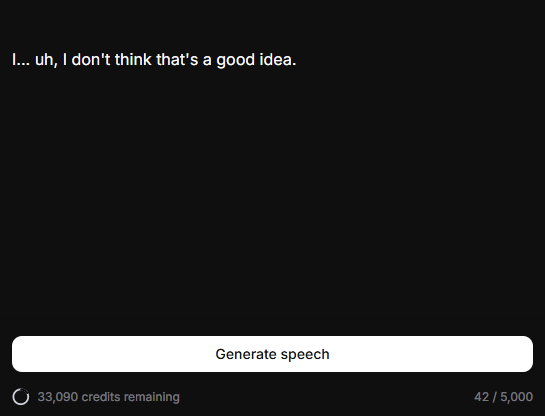
Hesitation: To sound natural and unscripted, add filler words or stutters.
Input: “I… uh, I don’t think that’s a good idea.”
Treat the text box like a script for an actor, not just a document for a reader.
3. The “Credit Saver” Workflow 💰
Nothing hurts more than generating a 5,000-character chapter, paying for it, and realizing the AI mispronounced the main character’s name.
Follow this workflow to save your budget:
Test Difficult Words First: If your script has fantasy names (e.g., “Targaryen”), create a separate project or use the free window to test how the AI says it. If it fails, use phonetic spelling (e.g., “Tar-gair-ian”).
Generate Sentence by Sentence: In the Projects tab, do not click “Convert Whole Chapter.” Convert paragraph by paragraph. If one sentence sounds weird, regenerate only that sentence.
Use Turbo for Drafts: If you are experimenting with the script, switch the model to Turbo v2. It is 50% cheaper. Only switch to Multilingual v2 for the final render.
11. Conclusion: The Future of Audio is Here
We have come a long way from the robotic, monotone voices of the past.
As we have explored in this guide, ElevenLabs is no longer just a “text-to-speech tool.” It has evolved into a comprehensive AI Audio Studio that lives in your browser. Whether you are a YouTuber needing to dub content into Spanish, an author creating an audiobook without a studio, or a game developer voicing an entire cast of NPCs—the barrier to entry has vanished.
To recap, here is your roadmap:
Start with Speech Synthesis to get comfortable with the settings.
Use Voice Design to create unique characters for your stories.
Upgrade to the Creator Plan when you are ready to clone your own voice and build your brand.
Use Projects to manage long-form content efficiently.
The tools are powerful, but they are just instruments. The creativity comes from you. You now have the knowledge to master the dashboard; the only thing left to do is to hear it for yourself.
Don’t just take our word for it. The technology changes so fast that reading about it isn’t enough—you need to experience the “magic” of hearing a computer speak with human emotion.
Transparency Note: This post contains affiliate links. If you use these links to buy something, I may earn a commission at no extra cost to you. Thanks for your support!